Shopify GitHub Integration for Themes: A Complete Guide for Shopify Experts
>For Shopify experts, designers, and developers in New Zealand, Australia, and the USA, efficient version control and collaboration are key to maintaining high-quality Shopify websites. Shopify’s GitHub integration transforms how teams manage and deploy theme code. This guide explores how Shopify GitHub integration works, its benefits, setup steps, and how it empowers Shopify website designers and developers.
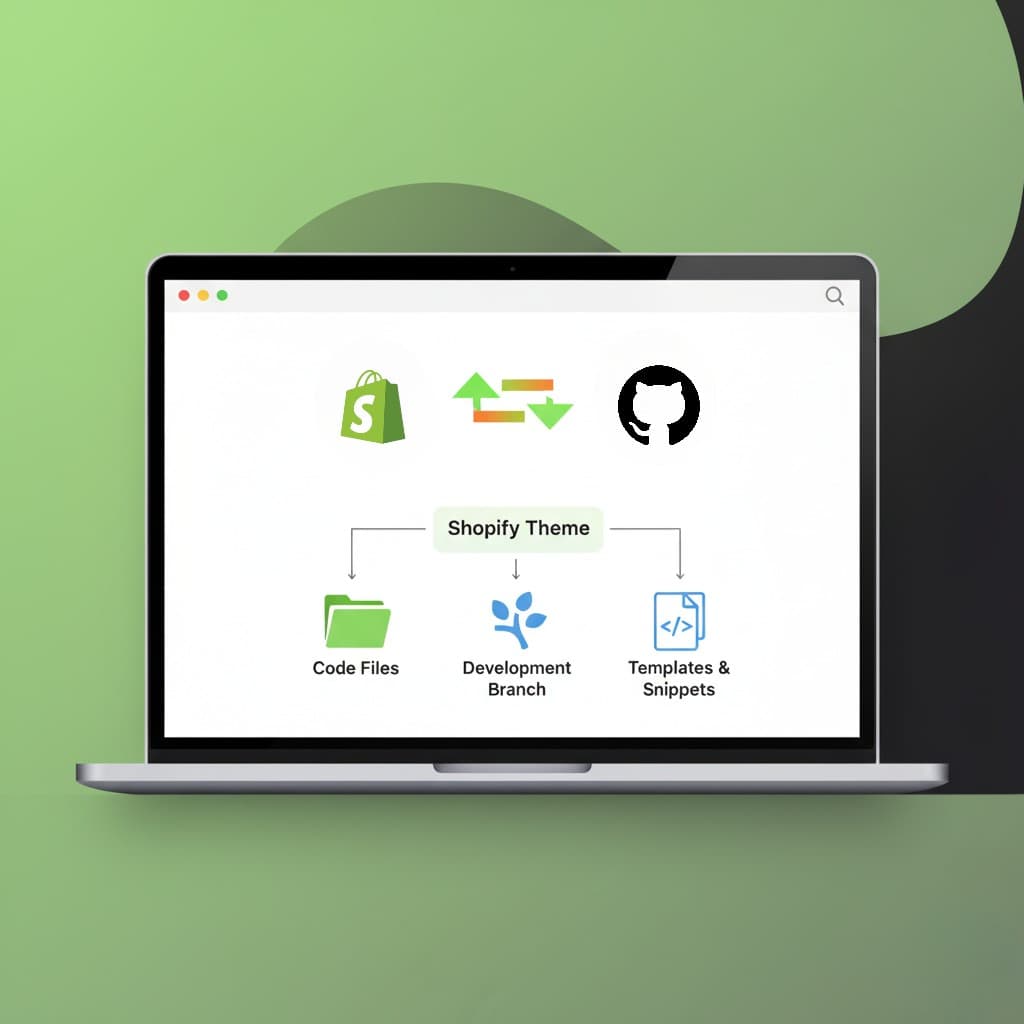
What Is the Shopify GitHub Integration?
The Shopify GitHub app lets you seamlessly connect your GitHub and Shopify accounts. It allows you to sync your theme code between GitHub repositories and the Shopify admin, enabling smooth collaboration among developers, designers, and agencies. Whether you’re a Shopify expert in NZ, a Shopify web designer, or a Shopify consultant working remotely with clients, this integration simplifies version control and teamwork.
Key Features of Shopify’s GitHub Integration
- Automatic sync between Shopify and GitHub repositories.
- Connect one or more branches from a repository for easy theme development and testing.
- Keep your Shopify theme updated with commits from GitHub branches.
- Track edits made through the Shopify admin, including theme and code editors.
- Connect both unpublished and published themes for full control over live and staging environments.
This makes it easier for Shopify designers to maintain multiple projects, test new features, or roll out marketing campaigns efficiently.
How the Shopify GitHub Integration Works
Whenever a connected GitHub branch is updated, Shopify automatically refreshes the theme in your admin. Similarly, when changes are made via Shopify’s theme editor or code editor, they are committed back to GitHub. This ensures your local and live codebases always stay synchronized.
Important note: GitHub updates occur automatically and can’t be disabled. To separate development and production code, Shopify recommends using multiple repositories or Git subtrees.
Commits by Shopify
Whenever a theme is edited in Shopify, a commit is created in your GitHub repository. The commit is made under the Shopify bot user and includes all modifications from any collaborator or staff member. These changes can come from:
- The Theme Editor – where visual customizations are made.
- The Code Editor – for direct code modifications.
- Theme Apps – installed through the Shopify Online Store.
This makes it easy to track and audit all changes made by team members or Shopify store designers.
Organization Access and Permissions
If your GitHub organization has granted access to the Shopify GitHub app, then any user with the Manage themes permission in Shopify can view and connect branches they have write access to. For security and confidentiality, you should only grant Shopify access to specific repositories that you intend to use for Shopify stores.
If new repositories are created later, you’ll need to manually grant Shopify’s GitHub app access to those repositories in GitHub.
Conflicts and Error Handling
Shopify’s GitHub integration handles most updates automatically, but conflicts can occur if multiple users edit the same file in different locations. For example, if one developer edits a file in GitHub while another edits it in the Shopify code editor, Shopify warns the user that their changes might overwrite the newer version.
To resolve conflicts, you can review the logs and manually pull the latest version of the branch. If necessary, force push the correct version from GitHub. Shopify consultants often use these logs to troubleshoot version mismatches and maintain synchronization between environments.
Limitations of Shopify GitHub Integration
- You can only use repositories where you have write access.
- Outside collaborators cannot connect branches — only organization members can.
- Personal repositories that you don’t own will not appear in Shopify’s repository list.
- Only repositories following the default Shopify theme structure are compatible.
Required Repository Structure
The repository you connect must follow the default Shopify theme folder structure. Folders or files outside this structure are ignored. If your theme uses build tools (like Tailwind, Sass, or Webpack), make sure your GitHub branch contains the compiled output (buildless version) before connecting it to Shopify.
Branch Management Strategies
Managing branches effectively is crucial for Shopify website developers and Shopify store designers. Some key practices include:
- Once disconnected, a branch cannot be reconnected — reconnecting creates a new theme instance.
- If you publish a theme connected to GitHub, it remains linked to the branch even after publishing.
- Use separate branches for testing new features, seasonal campaigns, or redesigns before merging them into your main branch.
Following version control best practices ensures a smooth workflow and reduces deployment risks — a must for teams offering Shopify store design services.
Step-by-Step Setup Guide
Step 1: Connect a Theme Repository
- Install the Shopify GitHub app.
- From the Shopify admin, go to Online Store → Themes.
- Click Add Theme → Connect from GitHub.
- Select your GitHub organization or personal account.
- Choose the repository and branch you want to connect.
- Your theme now appears in the theme library with the repository name, branch, and last commit timestamp.
Step 2: Test the Connection
- Make a small change in your Shopify theme, such as editing the announcement bar text.
- Click Save.
- Check your GitHub repository — you’ll see a commit from shopify-bot reflecting the change.
- Optionally, make a change in GitHub and push it to confirm updates flow both ways.
Step 3: Publish the Theme
- To track live updates, publish a theme that’s connected to your GitHub branch.
- This keeps your main branch aligned with the active storefront theme, enabling continuous version tracking and CI/CD workflows.
Best Practices for Shopify Theme Version Control
Based on real-world workflows from top Shopify experts and Shopify web designers in Christchurch, NZ, and globally:
- Maintain a main branch for production and feature branches for development.
- Use pull requests to review and merge code safely.
- Commit frequently with meaningful messages to track progress clearly.
- Regularly pull changes from GitHub to ensure your local or staging environments are current.
- Leverage GitHub Actions or CI/CD pipelines for automatic theme deployment.
This approach not only improves collaboration but also ensures version safety — a critical factor for agencies managing multiple client themes.
Why Shopify Experts Recommend GitHub Integration
For Shopify designers and Shopify website developers, GitHub integration unlocks several benefits:
- Seamless collaboration between developers, marketers, and clients.
- Improved traceability and rollback options.
- Reduced errors during theme updates and deployments.
- Faster onboarding for new developers joining a project.
- Compliance with best-practice version control principles.
When combined with digital marketing and content marketing strategies in Christchurch, Shopify GitHub integration ensures your online store’s branding and performance remain consistent across all updates.
Conclusion: Empowering Shopify Designers with Smart Workflow
The Shopify GitHub integration is a must-have for every Shopify expert NZ or Shopify website designer aiming for scalability and precision in development. It simplifies collaboration, prevents code conflicts, and ensures every theme is version-controlled and ready for production.
As a Shopify consultant, implementing GitHub integration in your workflow not only enhances efficiency but also builds client trust by showing that your processes align with professional development standards. For teams managing multiple stores or offering Shopify store design services, this is an indispensable tool for modern, error-free theme management.
Alliance IT Solutions
Related Articles

How to Know When Your Website Needs a Redesign
Your website is often the very first impression your business makes. If it's slow to load, difficult to navigate, or looks like it was built a decade ago, potential customers won't wait around to give you a second chance. Many businesses hold on to outdated websites far longer than they should — and quietly lose leads, credibility, and revenue every single day as a result.
Read More
Shopify vs WordPress vs Webflow: Which Platform Wins for AI-Powered Websites in 2026?
The platform you build on shapes everything — your SEO ceiling, your AI capabilities, your maintenance costs, and your ability to scale. Here is the most complete, honest comparison for businesses in the US, Australia, and New Zealand.
Read More
How AI-Powered Search Is Reshaping Shopify SEO in the US, Australia, and NZ
Google AI Overviews, ChatGPT, Perplexity, and Bing Copilot are changing how customers find products online. Here's what it means for your Shopify store — and exactly what to do about it.
Read MoreNeed Help with Your Project?
Our expert team is ready to help you implement these strategies and build amazing web solutions.
Get Free Consultation